
The Permission Screen You Always Tap Through - And Why It Matters

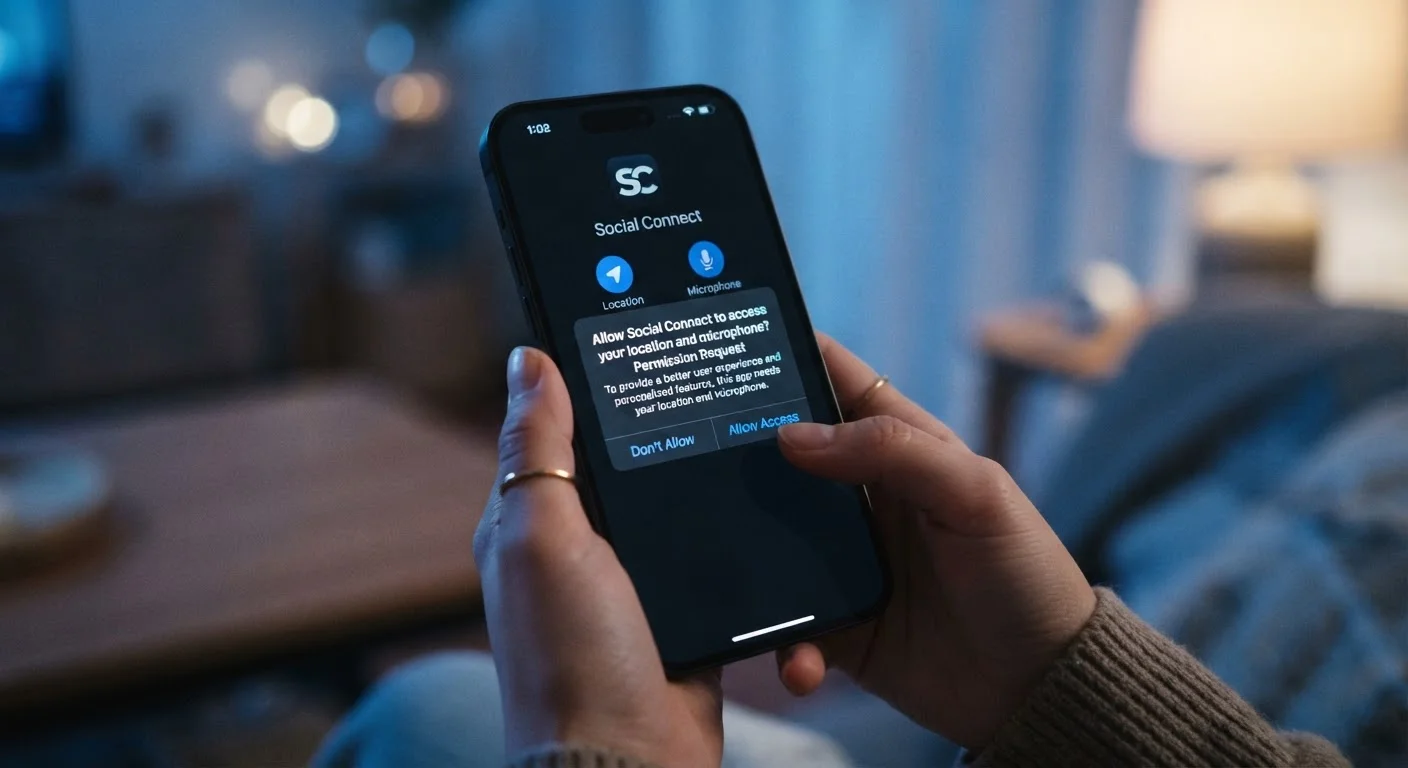
Photo: AdvisorBooth.net editorial
Key Takeaways
- Granting a permission gives an app ongoing access to that resource, not just a one-time look.
- Permissions fall into low-risk and high-risk categories - location, microphone, and contacts carry the most sensitivity.
- You can review and revoke any permission at any time through your phone's settings.
- A permission that seems mismatched with an app's purpose is worth questioning before approving.
- Both iOS and Android offer privacy dashboards showing which apps used which permissions recently.
What a Permission Actually Does
When you download a new app and open it for the first time, those permission prompts aren't just formalities. Each one is a contractual handshake: the app is telling you what it needs access to, and you're deciding whether that trade-off is acceptable.
Granting a permission doesn't just let the app peek at something once. It opens an ongoing channel. A weather app you allow to access your location can check that location whenever it runs - not just the first time you launched it. Understanding this distinction changes how you think about tapping "Allow."
Permissions are broadly split by sensitivity. Low-risk permissions cover things like knowing your time zone or whether your phone is connected to Wi-Fi. High-risk permissions - the ones that deserve a second thought - include:
- Location: Where you are, often with significant precision
- Microphone: The ability to record audio from your surroundings
- Camera: The ability to take photos or video
- Contacts: Your full address book, including everyone you know
- Photos/Media: Access to your entire camera roll
Both iPhone and Android now give you meaningful choices within these categories. For location, for example, you can choose to share only while the app is open, not all the time. That granularity matters.
Permissions Work Differently on iOS and Android
The Question Worth Asking Before You Tap
The most useful habit you can build is asking one simple question before approving any permission: Does this app need this to do what I'm using it for?
A flashlight app has no obvious reason to need your contacts. A recipe app doesn't need your precise GPS location to show you a pasta recipe. When the permission feels mismatched with the app's purpose, that mismatch is worth investigating - or simply denying.
89%
Of popular apps request at least one sensitive permission
Research from app privacy analysis organizations has consistently found the vast majority of top mobile apps request permissions beyond their stated core function.
1 in 3
Users never review app permissions after installation
Multiple mobile privacy surveys have found that most users grant permissions at install and do not revisit them, even years later.
Location
Most-requested high-risk permission across app categories
Location data is sought by apps far outside navigation and mapping categories, including retail, gaming, and utility apps, often to support advertising targeting.
There's also the question of business model. Many free apps generate revenue by sharing aggregated user data with advertisers or data brokers. Permissions are often the mechanism that makes that possible. This doesn't mean free apps are malicious, but it does mean the permissions they request are sometimes about their revenue model, not your user experience.
The good news is that modern smartphone operating systems make it easier than ever to audit this. Both iOS and Android now include privacy dashboards that show a recent timeline of which apps accessed which sensors. Checking this occasionally - especially for apps you installed a while ago - can surface surprises. For more on making the most of these tools, see privacy settings worth reviewing on any new device.
How to Review and Adjust Permissions You've Already Granted
Most people grant permissions on installation and never revisit them. But your phone's settings give you full control to change any permission at any time - and doing so won't break your phone or permanently affect the app.
On iPhone, navigate to Settings > Privacy & Security. You'll see each permission type listed. Tap into any one - say, Microphone - and you'll see every app that has requested it and what level of access you've granted. You can adjust each one individually.
On Android, the path is typically Settings > Privacy > Permission Manager, though the exact location varies slightly by manufacturer. The logic is the same: browse by permission type, see which apps have access, and modify as needed.
A practical approach: pick one permission category - say, location - and spend five minutes reviewing which apps have "Always" access. Downgrading any that don't genuinely need it to "While Using" is a low-effort, meaningful step. For more on keeping your overall app ecosystem tidy, keeping your apps organized and useful over time covers the broader habit of periodic app audits.
Start With Location and Microphone
When Permissions Are Reasonable - and When to Push Back
Not every permission request is a red flag. A maps app requesting location access makes complete sense. A video-calling app needing the microphone and camera is expected. The goal isn't suspicion - it's proportionality.
A useful mental model: think of permissions the way you'd think about giving a stranger access to your home. Some access is necessary and reasonable (a plumber needs to see the pipes). Other access would be strange and worth questioning (a plumber asking to read your mail).
Apps from well-known developers with clear privacy policies tend to use permissions in expected ways. Apps from unknown developers with vague purposes deserve more scrutiny. If you're uncertain, checking the app's privacy label - available in both the App Store and Google Play - shows what data the developer says they collect and why.
Permission hygiene is one of the simplest, most underrated things you can do for your digital privacy. It requires no technical expertise - just a moment's attention before you tap through. And because both major mobile platforms now surface how iOS and Android handle app behavior differently, understanding the system you're using helps you get the most out of these controls.
Frequently Asked Questions
The content on this site is for informational purposes only and is not a substitute for professional advice. Always consult a qualified professional for guidance specific to your situation.