
The Privacy Settings Worth Checking on Any New Device

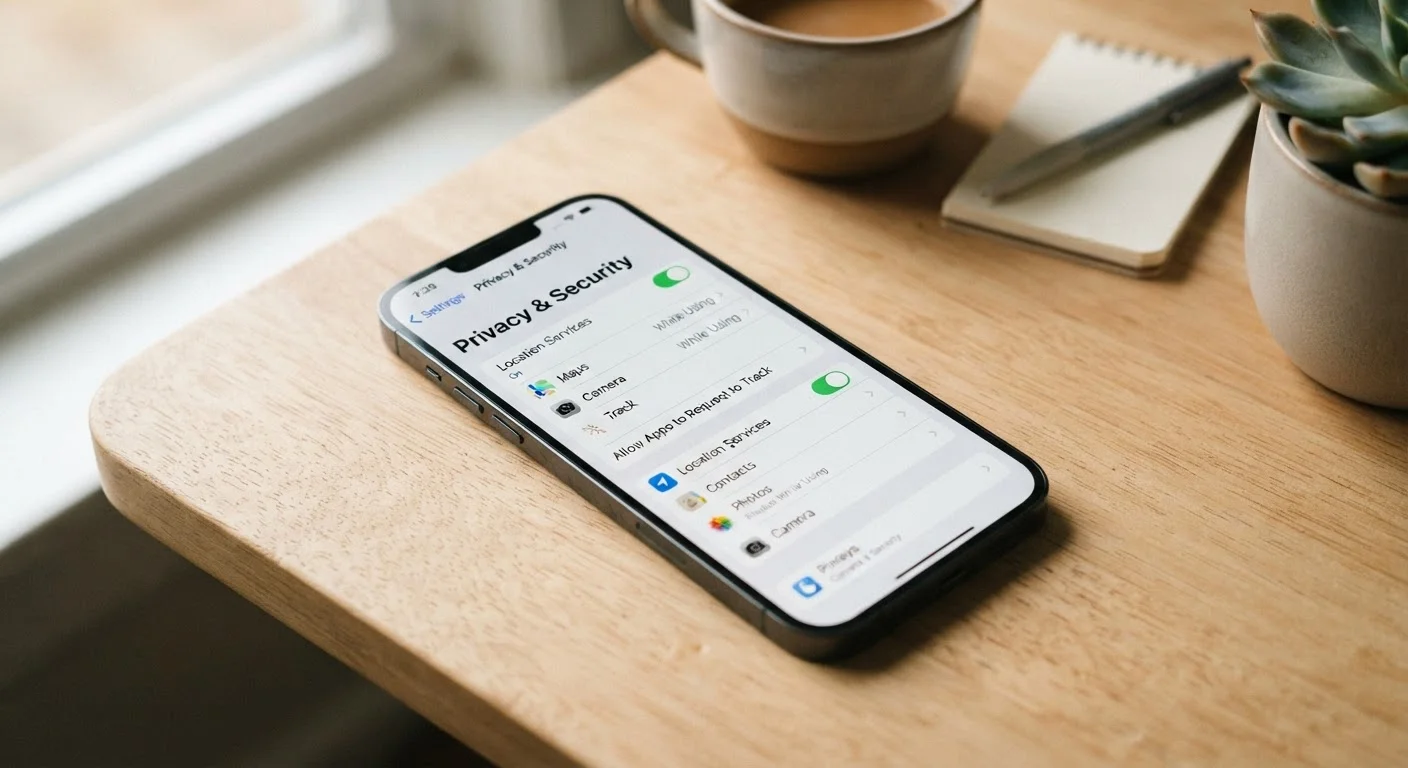
Photo: AdvisorBooth.net editorial
Key Takeaways
- New devices default to settings that prioritize convenience and data sharing over user privacy.
- Location, microphone, and camera permissions are among the most important to audit immediately.
- Advertising IDs and diagnostic data sharing are enabled by default on most platforms.
- Locking down privacy settings takes under an hour and requires no technical expertise.
- Reviewing app permissions after setup is just as important as the initial device configuration.
Why Default Settings Aren't Set Up for You
When a new phone, tablet, laptop, or smart home device arrives out of the box, it comes pre-configured - and those defaults almost universally favor the manufacturer's interests over your privacy. Diagnostic data gets sent automatically. Location services are switched on broadly. Advertising identifiers are active and ready to track your behavior across apps.
None of this is hidden, exactly, but it is buried. Most people tap through setup screens quickly, accepting defaults because the alternative feels complicated. The result: personal data starts flowing before a single app is downloaded.
This checklist walks you through the specific settings worth revisiting on any new device. You don't need a technical background to work through it - just a few minutes and this guide. If you want to understand what happens when you do grant app permissions without reviewing them, see our article on what each permission actually grants.
Location Services
Camera and Microphone
Advertising and Tracking
Diagnostics and Data Sharing
Contacts, Calendar, and Sensitive Data
Accounts and Sync
Tools You'll Need for This Audit
No special software is required. Everything on this checklist is accessible through your device's built-in settings menus. Having your device and a few minutes of uninterrupted time is all it takes.
Your device's Settings app
The built-in Settings menu is the primary place to access all privacy controls on phones, tablets, and computers.
Settings search function
Use the search bar within Settings to locate specific privacy options by keyword when menu labels vary by device or OS version.
Notepad or note-taking app
Useful for logging which apps had unexpected permissions so you can follow up or remove them later.
One practical note: settings menus vary by operating system version and device manufacturer. The category names below reflect common terminology - if a setting doesn't appear exactly where described, use your device's search function within Settings to locate it by keyword.
It's also worth doing this review again after major software updates, since system updates can occasionally reset or introduce new data-sharing options. For a broader look at setup mistakes that cause longer-term headaches, common gadget setup errors covers what to watch for from the very first screen.
Staying on Top of Privacy Over Time
Running through these settings once is a strong start, but privacy on any device isn't a one-time task. Apps are updated, new permissions get requested, and operating system changes can silently introduce new sharing options. Building a habit of revisiting your privacy settings every few months - especially after a major OS update - keeps you in control.
OS Updates Can Reset Some Settings
App accumulation is its own privacy issue. Apps you've forgotten about may still hold permissions to your location, contacts, or microphone. Periodically reviewing what's installed and what it can access is a meaningful habit. Our guide on keeping your apps organized and useful over time outlines a straightforward approach to that kind of ongoing audit.
The content on this site is for informational purposes only and is not a substitute for professional advice. Always consult a qualified professional for guidance specific to your situation.