
2.4 GHz vs. 5 GHz Wi-Fi: Choosing the Right Band for Each Room

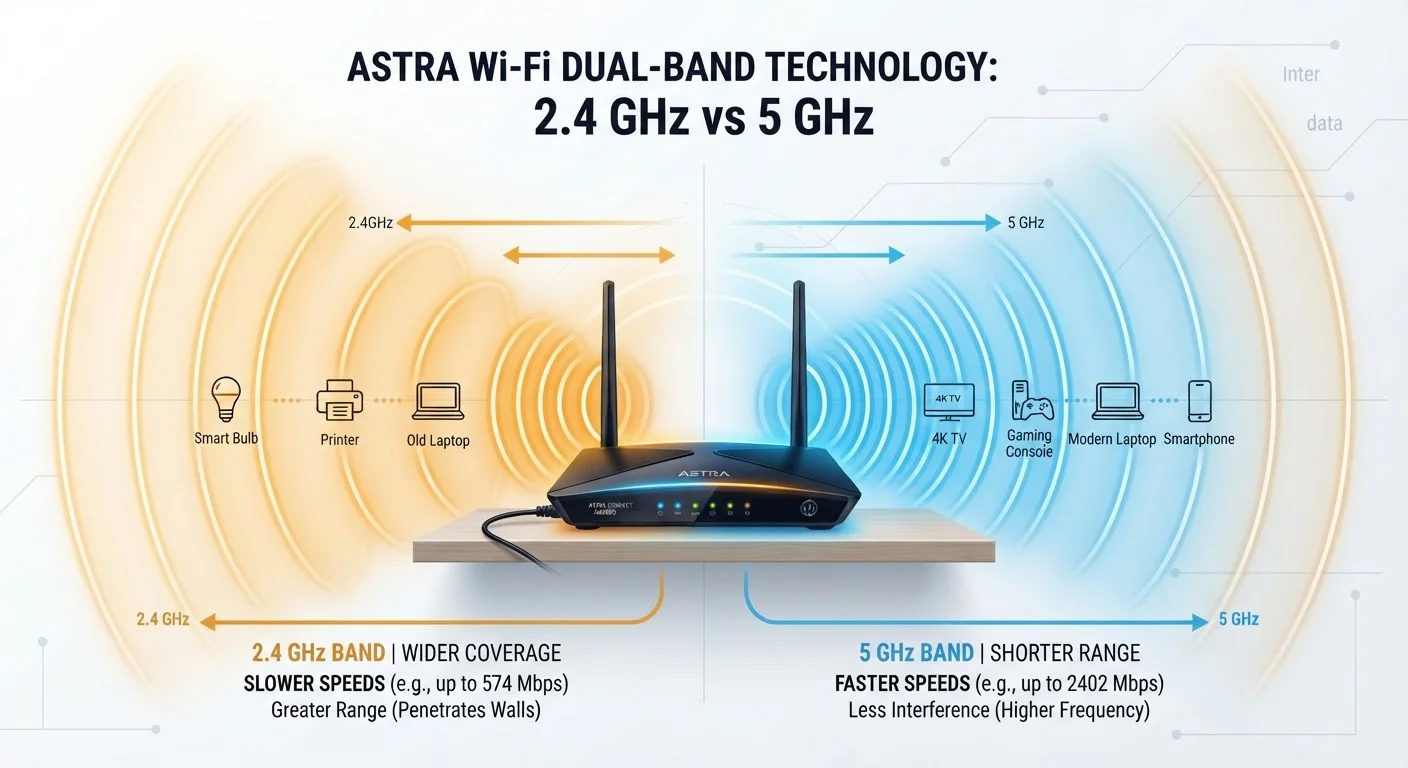
Photo: AdvisorBooth.net editorial
Key Takeaways
- 2.4 GHz travels farther and penetrates walls better, but delivers slower speeds and faces more interference.
- 5 GHz offers significantly faster speeds and less congestion, but its signal weakens more quickly over distance.
- Smart home devices, IoT sensors, and distant gadgets typically work better on 2.4 GHz.
- Streaming, gaming, and video conferencing benefit most from a 5 GHz connection.
- Many modern routers support both bands simultaneously - you don't have to choose just one for your whole home.
- Placement of your router affects both bands; walls and floors reduce 5 GHz signal more severely.
What Actually Separates the Two Bands
Every modern home router broadcasts Wi-Fi on two separate radio frequencies: 2.4 GHz and 5 GHz. Think of them as two different radio stations coming from the same antenna - same internet source, but different delivery characteristics.
The core trade-off is range versus speed. Lower-frequency signals like 2.4 GHz travel farther and pass through walls and floors more easily. Higher-frequency signals like 5 GHz carry more data but lose strength faster over distance and when obstructed. Neither is universally better - they're suited to different situations.
One more factor matters: congestion. The 2.4 GHz band has only three non-overlapping channels in the U.S., and it's shared with microwaves, baby monitors, Bluetooth devices, and every nearby router on the same frequency. The 5 GHz band offers many more non-overlapping channels, making it significantly less crowded. To understand why neighboring networks add to that congestion, see our article on how Wi-Fi channels and interference work.
| Criterion | 2.4 GHz | 5 GHz |
|---|---|---|
| Range | Longer - reaches farther rooms | Shorter - weakens more quickly |
| Wall/obstacle penetration | Better - passes through more easily | Worse - absorbed more by walls |
| Maximum speed potential | Lower throughput | Significantly higher throughput |
| Interference / congestion | High - crowded spectrum, few channels | Lower - more channels, less crowded |
| Best use cases | Smart home, distant devices, IoT | Streaming, gaming, video calls |
| Device compatibility | Near-universal, including older gear | Supported by most modern devices |
Matching the Right Band to Each Room and Device
Rather than picking one band for your entire home, the smarter approach is matching each device or room to the band that serves it best.
Living Room and Home Theater
A 4K streaming device or smart TV in the same room or one room away from the router should connect to 5 GHz. The higher throughput handles high-bitrate video without buffering. If the TV is far away or behind several walls, 2.4 GHz may actually sustain a more stable connection, even at lower speeds.
Home Office
For video conferencing and large uploads, 5 GHz is the clear choice - provided the office is within reasonable range of the router. If your home office is in a far corner or basement, router placement may be the deeper issue worth addressing first.
Kitchen and Smart Home Devices
Smart plugs, thermostats, video doorbells, and similar IoT devices typically only support 2.4 GHz - check the device specs. Even those that support both bands often perform more reliably on 2.4 GHz at the longer distances typical for home automation gear.
Bedrooms and Distant Rooms
For a smartphone or laptop in a far bedroom, 2.4 GHz usually provides a steadier connection. If speeds feel insufficient, a mesh system or Wi-Fi extender may be worth exploring. Our comparison of mesh networks versus traditional routers walks through the options for multi-room coverage.
What About 6 GHz (Wi-Fi 6E)?
Practical Tips for Dual-Band Routers
Most routers today broadcast both bands simultaneously, and many use a feature called band steering - the router automatically assigns devices to whichever band it judges best. This works reasonably well, but you can take manual control when it doesn't.
To manually separate the bands, log into your router's admin interface (usually via a browser at an address like 192.168.1.1 - check your router's label) and give each band a distinct network name, such as HomeNetwork_2.4G and HomeNetwork_5G. Then connect each device to the appropriate name. This takes a few minutes but removes the guesswork.
Keep in mind that walls, floors, and even appliances affect 5 GHz more severely than 2.4 GHz. A device three rooms away may show a strong 5 GHz signal indicator on screen but still perform poorly because signal strength indicators don't always reflect actual data throughput. If a device seems slow despite good signal bars, try switching bands manually and compare real-world performance.
For a broader look at how Wi-Fi compares to wired and cellular connections, see Wi-Fi, Ethernet, and cellular - which does what.
3
Non-overlapping channels on 2.4 GHz in the U.S.
The U.S. 2.4 GHz band supports only three non-overlapping channels (1, 6, and 11), meaning many neighboring networks share the same channel and compete for bandwidth.
25+
Non-overlapping channels available on 5 GHz
The 5 GHz band provides more than 25 non-overlapping channels in the U.S. under standard regulatory rules, dramatically reducing congestion compared to 2.4 GHz.
The content on this site is for informational purposes only and is not a substitute for professional advice. Always consult a qualified professional for guidance specific to your situation.