
Signals, Channels, and Interference: Why Your Wi-Fi Slows Down When Neighbors Are Online

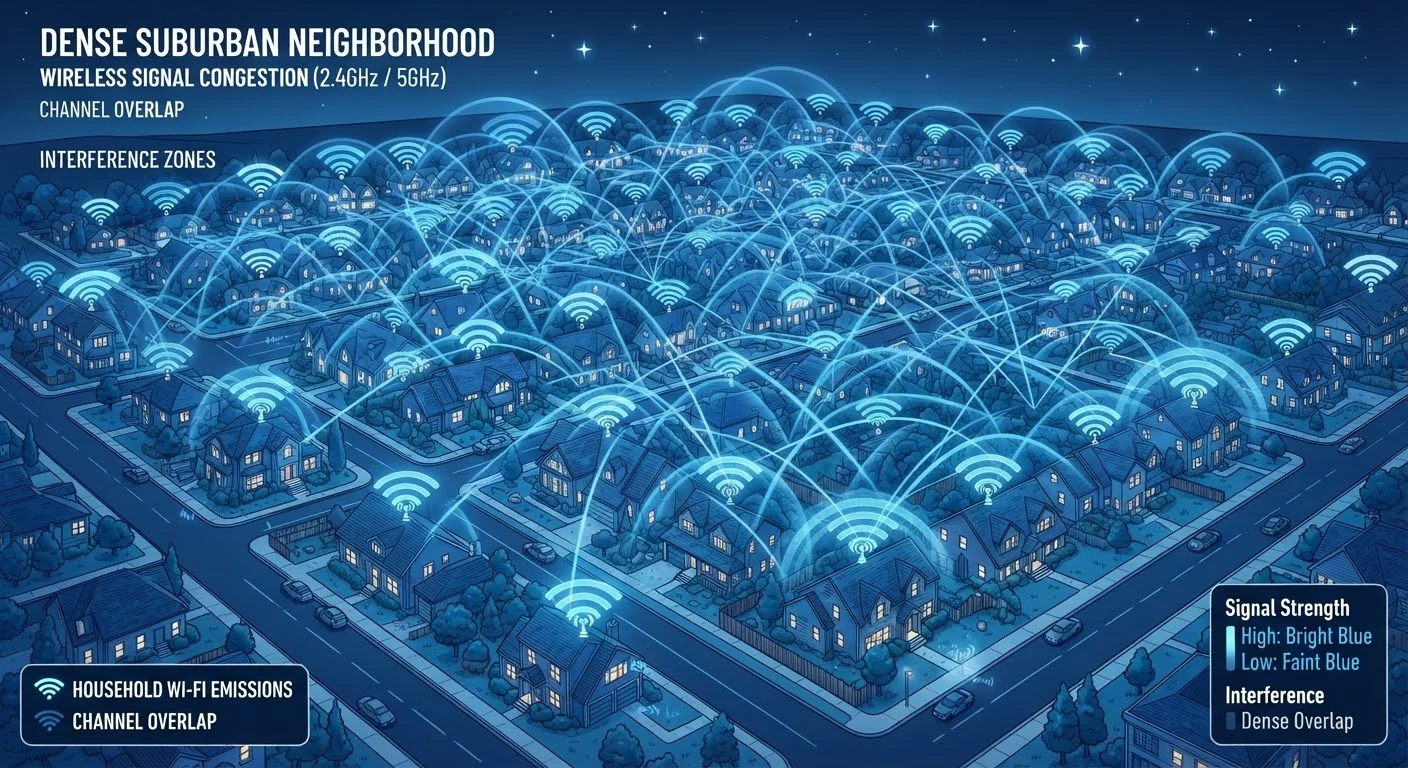
Photo: AdvisorBooth.net editorial
Key Takeaways
- Wi-Fi operates on shared public radio spectrum, so nearby networks compete for the same frequencies.
- The 2.4 GHz band has only three non-overlapping channels, making crowding far more common in apartments and dense neighborhoods.
- The 5 GHz band offers more channels and less interference but has shorter range.
- Most modern routers can automatically select the least congested channel.
- Interference is often the hidden cause of slowdowns that appear to be an ISP or device problem.
Wi-Fi Isn't a Private Line - It's a Shared Road
When you stream video or load a webpage, your router sends and receives data using radio waves - the same invisible energy that carries FM radio and cordless phone calls. Unlike a wired ethernet connection, these radio signals don't stay neatly inside your home. They pass through walls, floors, and ceilings, radiating outward in all directions.
The frequencies Wi-Fi uses are part of the public radio spectrum, regulated by the FCC but not exclusively licensed to any individual user. Everyone's router broadcasts in the same shared space. That's efficient and cost-effective, but it creates an inherent tension: the more routers operating nearby, the more those signals overlap and compete.
Think of it like a busy intersection without traffic lights. Each car (data packet) tries to cross without colliding, but as volume increases, everyone slows down. Your internet plan's speed is your car's engine - but interference is the congestion on the road.
Not All Slowdowns Are Interference
Channels: The Lanes Inside the Spectrum
Within each Wi-Fi frequency band, the available spectrum is divided into channels - narrower slices of radio frequency that routers use to communicate. The 2.4 GHz band, which most routers have used for decades, contains 11 channels in the U.S. - but here's the problem: most of those channels overlap with each other.
Only channels 1, 6, and 11 are truly non-overlapping on the 2.4 GHz band. That means in any given building or neighborhood, there are really only three usable lanes. In an apartment building with 20 units, dozens of routers are fighting over three slots.
The 5 GHz band is considerably less crowded. It offers more non-overlapping channels and is used by fewer legacy devices, which is why choosing the right band for your devices can make a meaningful difference in real-world performance.
3
Non-overlapping channels on 2.4 GHz in the U.S.
The 2.4 GHz band has 11 channels in the U.S., but only channels 1, 6, and 11 don't overlap - limiting usable lanes in any shared space.
24+
Non-overlapping 5 GHz channels available
The 5 GHz band offers significantly more non-overlapping channels than 2.4 GHz, making it considerably less prone to neighbor interference.
~330 ft
Typical 2.4 GHz signal range indoors
The 2.4 GHz band's longer range means a single router's signal can reach - and interfere with - routers several units or houses away.
What Interference Actually Does to Your Connection
When two routers operate on the same or overlapping channel, their signals interfere at the radio level. Your router's protocol responds by waiting - holding back transmissions until the channel clears. The more competing networks, the more your router waits, and the lower your actual throughput becomes.
This explains a pattern many households notice: speeds are fast at 2 a.m. but sluggish at 8 p.m. Nothing changed about your internet plan - what changed is how many neighbors are actively streaming, gaming, or video calling at the same time. More active routers means more channel congestion, and your connection slows accordingly.
Interference also causes the connection instability that looks like a problem with your device. If your laptop or phone seems slow when your router is working fine, it may not be the device at fault. Software-related slowdowns are real, but radio interference mimics them closely enough to confuse the diagnosis.
What You Can Actually Do About It
The most direct fix is changing your router's Wi-Fi channel. Most routers default to automatic channel selection, which doesn't always choose the least congested option. Logging into your router's admin panel and manually selecting channels 1, 6, or 11 on 2.4 GHz - whichever your neighbors are using least - can noticeably reduce interference. Free tools that scan nearby networks make it easy to see which channels are most crowded before you choose.
Switching more devices to the 5 GHz band is often the more impactful step. The 5 GHz band has shorter range but far more available channels, and it's typically less saturated in residential areas. Devices that stay in the same room as the router are good candidates for 5 GHz.
Router placement also matters more than most people realize. A router tucked in a corner or inside a cabinet has to work harder to reach your devices - amplifying any interference effects. Poor placement is one of the most common and fixable Wi-Fi problems in American homes.
If interference remains persistent despite these steps, a systematic troubleshooting approach can help you rule out other causes before contacting your ISP.
Try a Free Channel Scanner First
Frequently Asked Questions
The content on this site is for informational purposes only and is not a substitute for professional advice. Always consult a qualified professional for guidance specific to your situation.