
Troubleshooting a Slow or Dropping Internet Connection

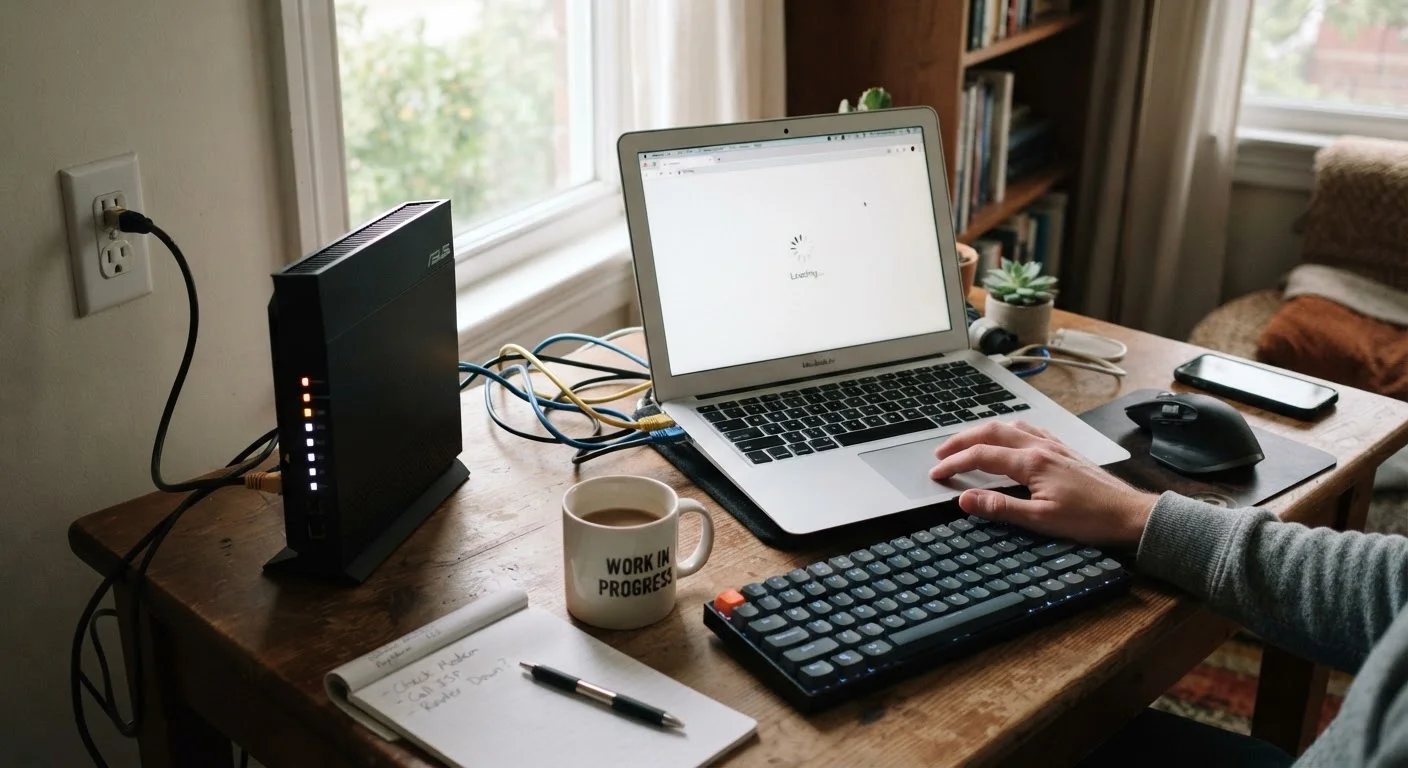
Photo: AdvisorBooth.net editorial
Key Takeaways
- Restarting your modem and router resolves a surprising number of connection problems without any technical expertise.
- Distance, walls, and interference are among the most common reasons Wi-Fi feels slower than your plan promises.
- Running a wired connection test helps isolate whether the problem is your Wi-Fi or your internet service itself.
- Too many devices or background apps consuming bandwidth can throttle speeds even on a fast plan.
- If problems persist after all checks, your ISP's line or equipment may be the actual culprit.
Why Your Connection Slows Down or Drops
A sluggish or unreliable internet connection almost always has a cause - and in the majority of cases, that cause is something you can investigate and often fix yourself before spending time on hold with your provider. The problem could be your hardware, your home's physical layout, device settings, network congestion, or a genuine issue on your ISP's end.
This checklist walks you through the most common culprits in a logical order, starting with the simplest fixes. Work through each group before moving to the next. If you've ever wondered whether your Wi-Fi habits are working against you, our guide to common Wi-Fi myths is worth a read alongside this one.
Restart and Reset Hardware
Test Your Actual Speed
Improve Wi-Fi Signal Quality
Reduce Network Congestion
Check Device and Software Settings
Escalate to Your ISP
Tools You'll Need
You don't need specialized equipment to work through this checklist, but a few basic tools will make the process faster and more accurate.
Ethernet Cable
Used to connect your laptop or computer directly to the modem for an accurate baseline speed test, bypassing Wi-Fi variables.
Browser-Based Speed Test
Measures your actual download and upload speeds so you can compare them against your plan's advertised rate.
Router Admin Panel
Accessed via your browser using your router's IP address, it allows you to check connected devices, update firmware, and adjust band or QoS settings.
ISP Outage Checker
Your internet provider's website or app typically shows real-time outage maps so you can confirm whether a wider issue is already known.
Malware Scanner
A reputable security tool helps rule out malicious software using your bandwidth without your knowledge.
When the Problem Might Not Be Your Connection
Slow internet isn't always the network's fault. If speeds test fine but a specific app or website feels sluggish, the issue is likely on that service's end - or on your device itself. Background software updates, browser extensions, and too many open tabs can all create the impression of a weak connection when the network is actually healthy.
If your device consistently feels slow even after the network checks out, consider whether software habits are the real bottleneck. Our article on signs your device is slowing down due to software covers those scenarios in detail.
Don't Reset to Factory Settings Too Quickly
If you've completed every item on this checklist and the problem persists across multiple devices and a direct wired connection, contact your ISP. Ask them to run a line test and, if applicable, check the signal levels on your modem - they can often diagnose line noise or signal degradation remotely.
The content on this site is for informational purposes only and is not a substitute for professional advice. Always consult a qualified professional for guidance specific to your situation.