
Common Wi-Fi Myths That Are Quietly Slowing Down Your Connection

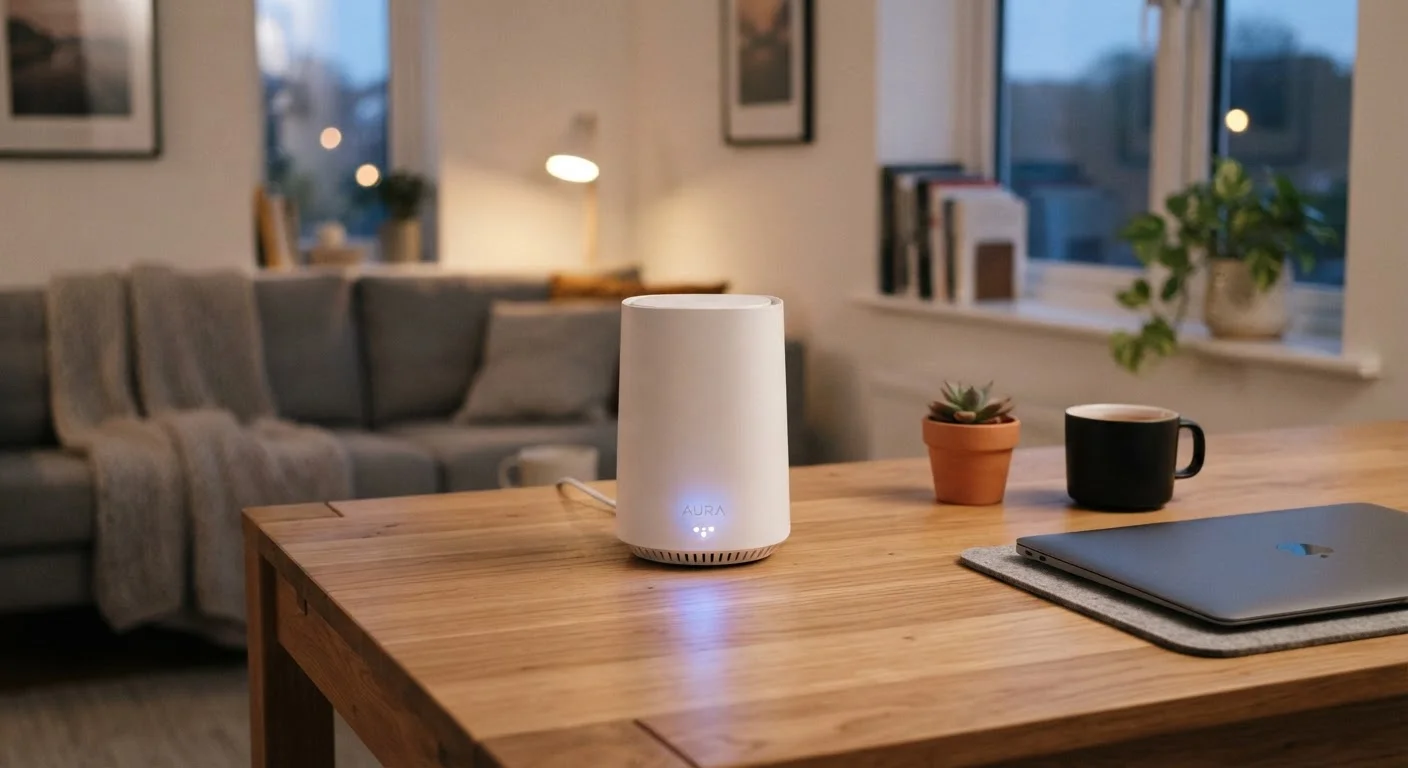
Photo: AdvisorBooth.net editorial
Key Takeaways
- Hiding your Wi-Fi network name does not make your network meaningfully more secure.
- More signal bars on your device do not always mean faster internet speeds.
- Restarting your router daily is unnecessary and offers no consistent speed benefit.
- A single router is often insufficient to cover a large or multi-story home.
- The 5 GHz band is faster at close range, but 2.4 GHz travels farther through walls.
Why Wi-Fi Myths Persist - and Why They Matter
Home Wi-Fi is one of those technologies that's everywhere but rarely explained well. Most people set up a router once and then make decisions based on advice passed along from friends, tech forums, or half-remembered tips from years ago. The problem is that a surprising number of those tips are either outright wrong or oversimplified to the point of being misleading.
Acting on bad information doesn't just fail to help - it can actively waste your time, leave you with a slower or less secure network, and cause you to overlook the changes that would actually make a difference. The myths below are among the most commonly repeated, and correcting them is the first step toward a network that genuinely performs well.
Myth
Hiding your Wi-Fi network name (SSID) keeps your network secure from hackers.
Fact
A hidden SSID provides virtually no security benefit - any basic network scanning tool can detect a hidden network within seconds.
When you hide your network's name, your router still broadcasts radio signals that can be detected by anyone running freely available scanning software. What hiding the SSID actually does is make your own devices work slightly harder to find and reconnect to the network. Real security comes from a strong, unique password and current encryption standards like WPA3 or WPA2. For habits that genuinely protect your home network, see practical home network security habits.
Myth
More Wi-Fi signal bars on your phone or laptop means a faster internet connection.
Fact
Signal strength and connection speed are related but not the same thing - interference, congestion, and your ISP plan matter just as much.
Signal bars measure radio signal strength between your device and the router, not the quality or speed of your actual internet connection. You can have full bars and still experience slow speeds if your router's channel is congested with interference from neighboring networks, if multiple devices in your home are consuming bandwidth simultaneously, or if your internet plan simply has a lower ceiling. Channel interference from nearby networks is a common and underappreciated cause of slowdowns even when signal looks strong.
Myth
Restarting your router every day will keep your internet running faster.
Fact
Occasional restarts can clear temporary glitches, but daily reboots offer no consistent speed improvement and can introduce unnecessary interruptions.
Routers do benefit from an occasional restart - it clears memory, applies firmware changes, and can resolve minor connectivity hiccups. But making it a daily ritual doesn't improve baseline performance. What does help is ensuring your router's firmware is up to date, that it's placed optimally in your home, and that your Wi-Fi channel isn't overcrowded. If you find yourself needing to restart frequently to maintain a usable connection, that points to an underlying problem worth diagnosing. Our guide to troubleshooting a slow or dropping internet connection walks through that process systematically.
Myth
One router is always enough to cover any home with Wi-Fi.
Fact
A single router has physical and technical limits - larger homes, thick walls, and multi-story layouts routinely create dead zones a single unit cannot reach.
Router manufacturers often advertise coverage ranges under ideal conditions: open space, no obstructions, no interference. Real homes have concrete walls, appliances, and floors that absorb and reflect radio signals. For homes larger than roughly 1,500 square feet, or any multi-story layout, a single router frequently leaves dead zones. Mesh networking systems - which use multiple coordinated nodes - are specifically designed to address this. Router placement is also a critical and often overlooked factor; most routers are placed in the wrong spot, which compounds coverage problems.
Myth
The 5 GHz Wi-Fi band is always better and you should always use it.
Fact
The 5 GHz band offers faster speeds at close range, but 2.4 GHz penetrates walls better and maintains connectivity at greater distances.
The two bands your router broadcasts serve genuinely different purposes. The 5 GHz band delivers higher throughput and is ideal for bandwidth-intensive tasks like video streaming or gaming when your device is relatively close to the router. The 2.4 GHz band travels farther and passes through obstacles more effectively, making it more reliable for devices in distant rooms or those with modest bandwidth needs, like smart home sensors. Choosing the right band for each location and device type - rather than defaulting to one - is the smarter approach. For a deeper breakdown, see choosing the right Wi-Fi band for each room.
What to Actually Do When Your Wi-Fi Underperforms
Once you've cleared out the misconceptions, a clearer picture emerges of what actually influences your Wi-Fi experience: router placement, band selection, channel congestion, the age and capability of your equipment, and the internet plan you're paying for.
If your connection is consistently slow or unreliable, start with the basics before assuming your router needs replacing. Verify that your router is positioned centrally and elevated - not tucked behind furniture or in a corner. Check whether your devices are connecting to the most appropriate band for their location. Run a speed test correctly (not just once, and not while other devices are streaming) to get a reliable baseline - running a meaningful internet speed test requires more care than most people realize.
It's also worth understanding that Wi-Fi is just one part of a larger chain. Your modem, your ISP's infrastructure, and even the server you're connecting to all play roles. For a broader picture of how different connection types compare, understanding Wi-Fi, Ethernet, and cellular differences is a useful reference. Separating myth from mechanism puts you in a much better position to make real improvements - rather than chasing fixes that don't work.
Don't Rely on Your ISP's Default Router Settings
The content on this site is for informational purposes only and is not a substitute for professional advice. Always consult a qualified professional for guidance specific to your situation.