
How to Run a Meaningful Internet Speed Test

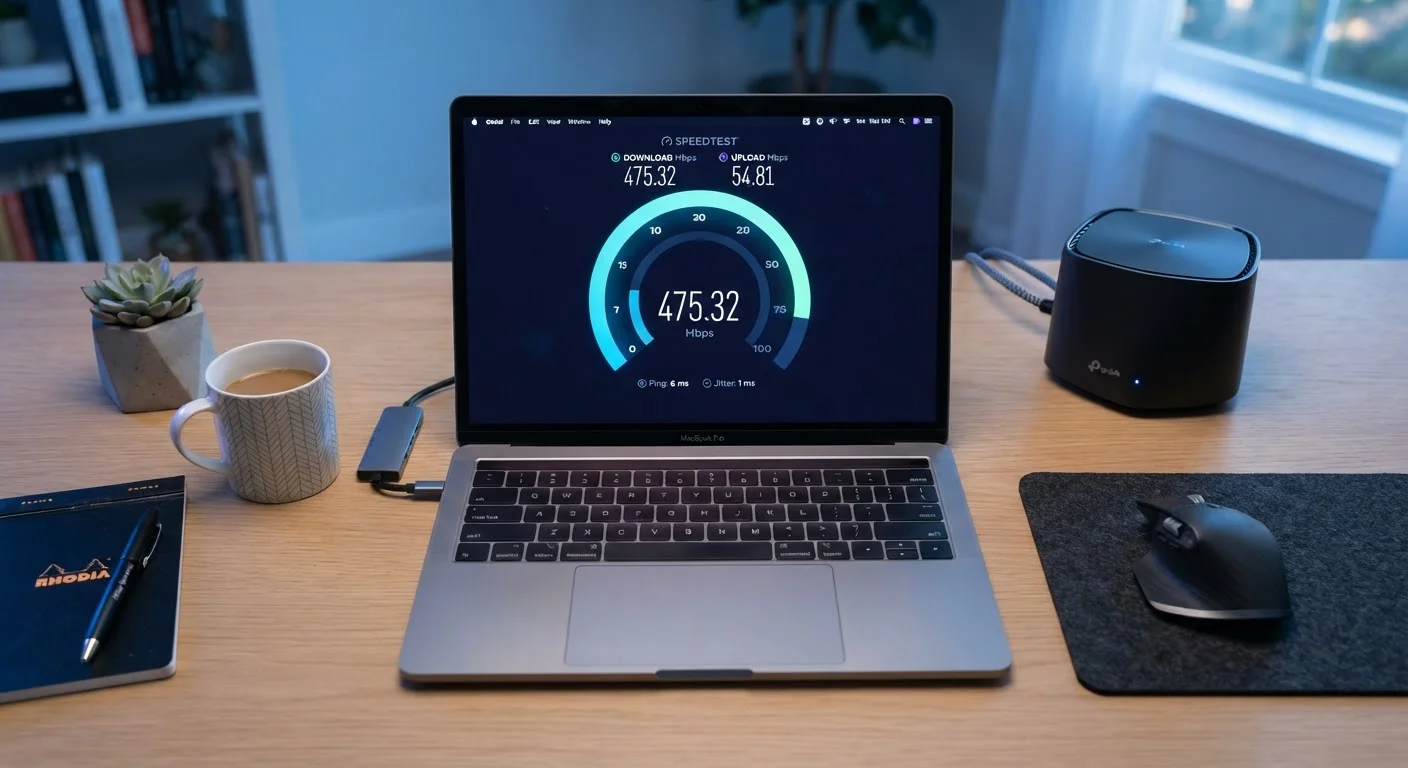
Photo: AdvisorBooth.net editorial
Key Takeaways
- Where and how you run a speed test dramatically affects how accurate the results are.
- A wired Ethernet connection gives a cleaner baseline than Wi-Fi testing.
- Download speed, upload speed, and latency (ping) each tell you something different.
- Run multiple tests at different times of day before drawing any conclusions.
- Compare results against your plan's advertised speeds to evaluate ISP performance.
Why Most Speed Tests Give You the Wrong Picture
Speed tests seem simple - visit a website, click a button, get a number. But that number is only meaningful if the conditions around it are controlled. Test over a congested Wi-Fi connection with four streaming videos running in the background, and you'll measure your home network's chaos, not your internet service's actual capability.
Before you can act on results, you need to understand what a speed test actually measures. It sends and receives data between your device and a nearby test server, then reports three key figures: download speed (how fast data flows to your device), upload speed (how fast data leaves your device), and ping (round-trip latency in milliseconds). For a deeper look at what those numbers mean in practice, see our guide to internet speed numbers.
Each metric reveals a different aspect of your connection, and a weakness in any one of them can affect real-world performance in different ways. High ping hurts video calls and gaming even when download speed looks healthy. Low upload speed makes sharing large files or streaming yourself painful even on a fast plan.
What You'll Need Before You Start
Getting an accurate reading requires a bit of preparation. Gather these resources and make these adjustments before running any test.
What you will need
Ethernet Cable
Connects your computer directly to the router to eliminate Wi-Fi variability from test results.
Web Browser
Used to access a speed test site such as a provider-neutral testing tool.
ISP Account Information
Lists your plan's advertised speeds so you can compare against test results.
Second Device
Allows you to confirm all other network activity is paused while the primary test runs.
Step-by-Step: Running the Test Correctly
Follow these steps in order. Skipping the setup steps is the most common reason people get misleading results.
Pause all network activity in your home
Ask household members to pause streaming, downloads, backups, and video calls on every device - phones, tablets, smart TVs, and game consoles included. Background traffic from other devices competes for bandwidth and will pull your test results down artificially.
Connect your test device directly via Ethernet
Plug an Ethernet cable from your router or modem directly into the device you'll use for testing. This bypasses Wi-Fi entirely, removing signal interference and distance from the equation. A wired test measures your internet connection - a Wi-Fi test measures both your internet connection and your home wireless network at the same time.
Close unnecessary apps and browser tabs
On your test device, close all applications that might use bandwidth: cloud sync services, software updaters, email clients, and open browser tabs. Even background apps can send and receive small amounts of data that skew results.
Open a reputable, provider-neutral speed test tool
Navigate to a well-established speed test service using your browser. Use a provider-neutral tool rather than one operated by your own ISP - ISP-run tests can sometimes route traffic preferentially, which may produce inflated readings. When the page loads, confirm the test server location shown is the nearest available city to your home.
Run the test and record all three values
Start the test and wait for it to complete - typically 30 to 60 seconds. Note all three results: download speed, upload speed, and ping. Don't rely on a single screenshot; write the numbers down or take a screenshot for each run.
Repeat at different times of day
Run the test at least three times across different periods - morning, early evening (peak hours, typically 7-9 PM), and late night. Internet speeds frequently drop during peak hours when more subscribers in your area are online simultaneously. A single test at an off-peak time may paint an unrealistically rosy picture.
Reading Your Results and Knowing What to Do Next
Once you have results, compare your download and upload speeds against the speeds listed in your internet service plan. Most providers advertise speeds as "up to" a maximum, so some variation is expected - but consistently landing well below 80% of your advertised speed during off-peak hours is worth investigating.
Ping results matter more for some activities than others. Under 20ms is excellent for gaming and video calls. Between 20-100ms is acceptable for most household uses. Above 150ms will likely cause perceptible lag in real-time applications.
Test Multiple Times Before Contacting Your ISP
If your wired results look healthy but Wi-Fi performance feels sluggish, the problem is likely your home network rather than your ISP. Router placement is one of the most overlooked causes - see where most routers are placed wrong and how to fix it. If problems persist across multiple devices and connection types, work through our internet troubleshooting guide before calling your provider.
The content on this site is for informational purposes only and is not a substitute for professional advice. Always consult a qualified professional for guidance specific to your situation.