
What the Padlock Icon in Your Browser Actually Tells You

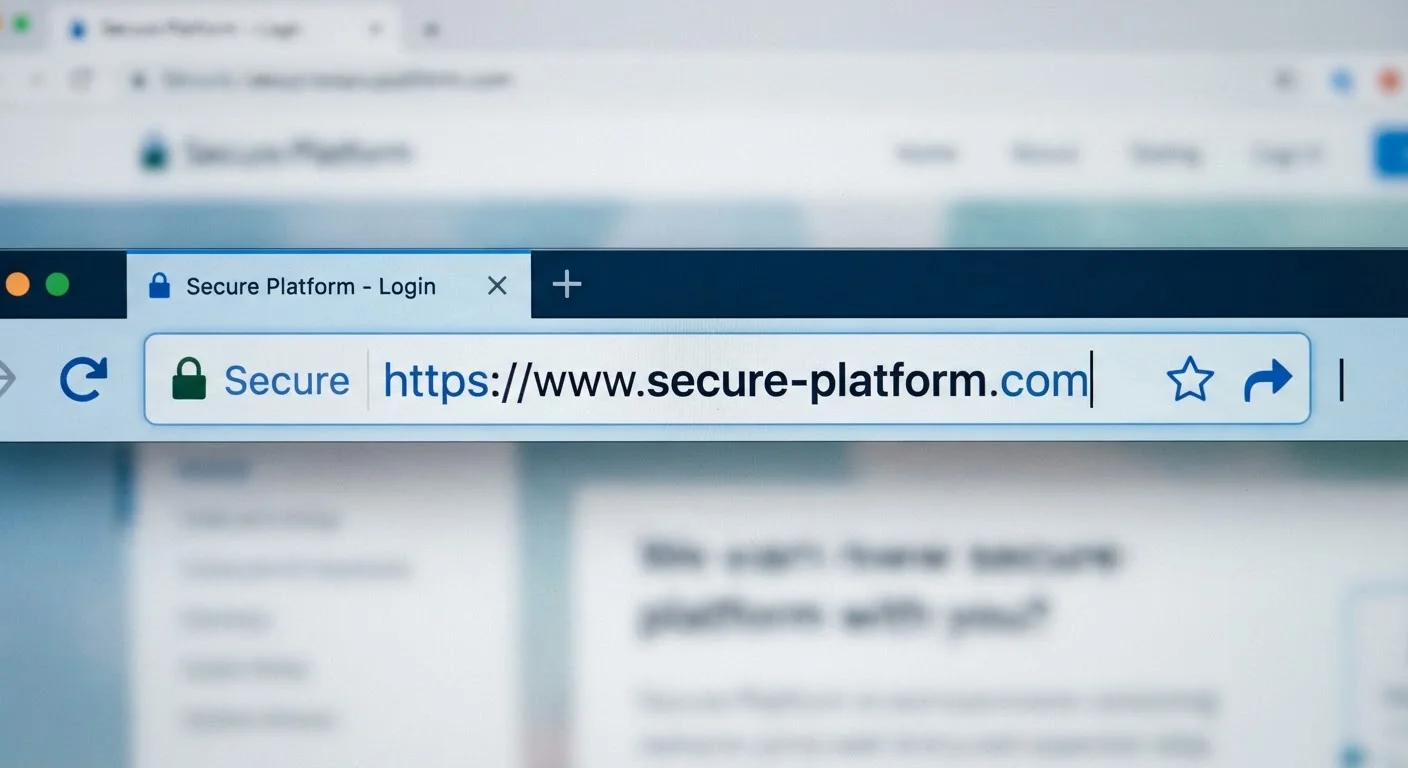
Photo: AdvisorBooth.net editorial
Key Takeaways
- The padlock icon means your connection is encrypted, not that the site itself is legitimate or safe.
- Scam and phishing sites routinely use HTTPS and display a padlock icon.
- You should check domain names, site reputation, and other trust signals beyond the padlock.
- Encryption protects data in transit but cannot protect you from handing data to a fraudulent site.
- Browser security warnings still matter - but the absence of a warning is not a green light.
What the Padlock Icon Actually Means
When you see a padlock in your browser's address bar, it tells you one specific thing: the connection between your browser and that web server is encrypted using TLS. Your data - passwords, form entries, payment details - is scrambled while traveling across the internet, making it significantly harder for someone to intercept it mid-transit.
That's a meaningful and important protection. But it's a narrow one. The padlock is a statement about how your data travels, not about who receives it or what they'll do with it. The site on the other end could be a well-established retailer or a carefully crafted fraud operation - the padlock looks identical either way.
Padlock ≠ Safe Site
Common Myths - Corrected
Consumer confusion around the padlock icon is widespread and actively exploited by bad actors. The myth-fact pairs below address the most consequential misconceptions. Understanding these distinctions is one of the most practical things you can do to protect yourself when shopping or submitting information online.
Myth
If a website has a padlock icon, it's safe to enter my personal and payment information.
Fact
The padlock only confirms the connection is encrypted - it makes no claim about whether the site operator is honest or legitimate.
The padlock icon indicates that the connection between your browser and the web server uses TLS encryption. That means data traveling between the two points is scrambled and harder for third parties to intercept. It does not mean the site has been vetted for legitimacy, that its owner is who they claim to be, or that your data won't be misused once it arrives at their server.
Think of it like a sealed envelope: encryption keeps the contents private in transit, but it can't tell you whether the recipient is trustworthy.
Myth
Only legitimate businesses can get an HTTPS certificate and show the padlock.
Fact
Free, automated HTTPS certificates are available to anyone - including people running fraudulent sites - in minutes.
Certificate authorities such as Let's Encrypt provide free SSL/TLS certificates automatically, with no identity verification beyond proving control of a domain. This is great for the web's overall security posture, but it means that obtaining a certificate - and triggering the padlock icon - requires essentially no proof that you're a real, honest business.
Security researchers have documented that a significant share of phishing sites operate over HTTPS. Fraudsters actively exploit consumer trust in the padlock symbol.
Myth
A site without the padlock is definitely dangerous, while one with it is definitely fine.
Fact
The presence or absence of a padlock is just one signal - risk assessment requires looking at multiple factors.
A missing padlock (plain HTTP) means your connection is unencrypted, which is a genuine concern for any page where you submit information. But the risk landscape is not simply 'padlock = safe, no padlock = dangerous.'
Many fraudulent and malicious sites display a padlock. Conversely, some low-risk informational pages may still serve over HTTP. What matters is a combination of signals: the exact domain name, whether the site matches where a link claimed to take you, third-party reputation data, and the type of information being requested.
Myth
Seeing 'HTTPS' in the address bar means the site's identity has been verified.
Fact
Standard DV certificates only verify domain control, not the real-world identity of the business behind the site.
There are different types of TLS certificates. Domain Validation (DV) certificates - the most common type - only confirm that the certificate holder controls the domain. Extended Validation (EV) certificates historically required more rigorous identity checks, but most browsers no longer display a distinct visual indicator for EV certificates, so consumers cannot easily distinguish them.
For stronger identity assurance, look for trust signals beyond the address bar: verifiable business contact information, independently hosted reviews, recognizable domain names that match the brand exactly, and payment methods with buyer protection.
Myth
If I'm on an HTTPS site, a VPN adds no extra protection.
Fact
HTTPS and VPNs address different security concerns and are not redundant.
HTTPS encrypts the data between your browser and the specific site you're visiting. A VPN encrypts the connection between your device and the VPN server, which can help mask your activity from your internet service provider or other observers on the network - but it doesn't verify whether the destination site is legitimate. The two tools solve distinct problems. See our explainer on what a VPN actually does for a fuller breakdown of where VPNs help and where they don't.
What You Should Actually Check
Rather than relying on the padlock alone, develop a habit of verifying multiple trust signals before submitting any sensitive information:
- Inspect the full domain name carefully. Phishing sites often use domains like
amazon-secure-login.comrather thanamazon.com. Look at the exact characters before the first single slash. - Check how you arrived at the site. Navigating directly or via a trusted bookmark is safer than following an unexpected email or social media link.
- Look for independently verifiable contact information - a real phone number, physical address, and established social presence.
- Use payment methods with buyer protection - credit cards and established payment processors generally offer dispute mechanisms that direct debit does not.
- Consult external reputation sources - the Better Business Bureau, Trustpilot, or a quick web search for the site name plus 'reviews' or 'scam' can surface problems quickly.
Don't Ignore Browser Security Warnings
For a structured approach before any online purchase, our pre-purchase safety checklist walks you through the key steps to verify a seller and a site before you hand over your payment details.
The content on this site is for informational purposes only and is not a substitute for professional advice. Always consult a qualified professional for guidance specific to your situation.